How to search Google without the AI Overview
Google’s AI Overview gives you its own answer before the real results. Here’s how to skip it with &udm=14, make that your default, or use DuckDuckGo’s no-AI search.
On this page
When you search on Google now, the first thing you usually see isn’t a list of websites. It’s a box called AI Overview: a summary written by Google’s AI, giving you what it thinks is the right answer.
I don’t like it. It took over the top of the page, and for me it made searching worse.
The good news: you can turn search back into search. Here’s how, step by step.
What’s wrong with the AI Overview? #
The AI Overview reads a bunch of websites and writes a short summary for you. That sounds helpful. But in my experience, the results just aren’t that good.
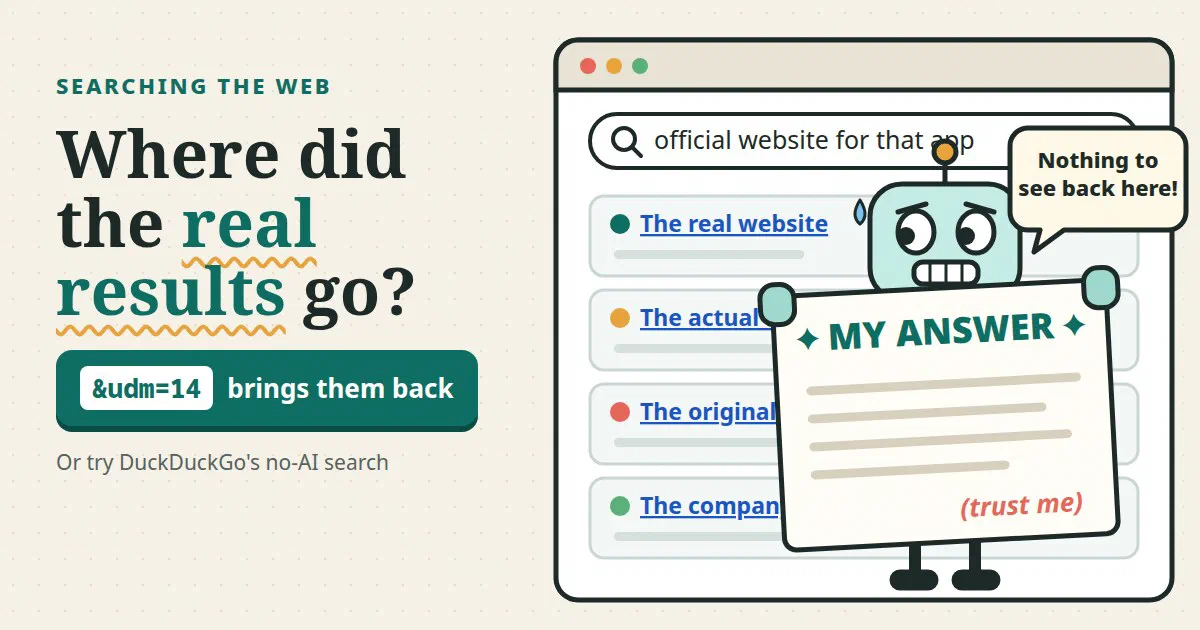
Here’s what bugs me most. Sometimes I’m looking for a company or an app. I want their website. Instead, the AI Overview talks about what I’m looking for, and the links it gives me aren’t the main source. They’re always some third party: a review site, a list, an article about the company. Not the company itself.
And the real results, the actual websites, get pushed down the page.
A summary is someone else’s take on the answer. Sometimes you just want to go to the source and read it yourself.
AI isn't the problem
I work with AI, and I use it as a tool. My issue is with AI deciding the answer for you before you even see the websites. When I search, I want the search results.The quick fix: the Web tab #
Google still has plain search results. They’re just hidden behind a tab called Web.
- Search on Google like you normally do.
- Look at the row of tabs under the search box: All, Images, News, and so on.
- Tap or click Web. If you don’t see it, it’s usually under More.
Now you get a plain list of websites. No AI Overview.
The catch: you have to do this on every single search. That gets old fast. So let’s make it automatic.
The trick: &udm=14 #
Every Google search has a web address, like any other page. When you click the Web tab, Google adds a little piece to the end of that address: &udm=14.
That little piece is the trick. It tells Google: “show me the Web results.” If it’s in the address from the start, you go straight to plain results every time.
Here’s a normal Google search for “pancake recipe”:
Normal search
https://www.google.com/search?q=pancake+recipeAnd the same search, straight to the Web results:
With &udm=14
https://www.google.com/search?q=pancake+recipe&udm=14You don’t have to type that every time. You can tell your browser to add it for you. (Your browser is the app you use to visit websites: Chrome, Edge, Firefox, Safari.)
The steps below use this address. The %s is where your browser puts whatever you type in the search bar:
The address to copy
https://www.google.com/search?q=%s&udm=14Make it your default on a computer #
Pick the browser you use. It takes about two minutes.
Chrome #
- Click the three dots in the top right corner, then Settings.
- On the left, click Search engine.
- Click Manage search engines and site search.
- Scroll to Site search and click Add.
- Fill it in:
- Name: Google Web
- Shortcut: gweb
- URL: paste the address from above
- Click Add.
- Find Google Web in the list, click the three dots next to it, and choose Make default.
Microsoft Edge #
- Click the three dots in the top right corner, then Settings.
- Go to “Privacy, search, and services”, then Address bar and search.
- Click Manage search engines, then Add.
- Fill in Google Web for the name, gweb for the shortcut, and paste the address. Save it.
- Go back one step. Under Search engine used in the address bar, choose Google Web.
Firefox #
- Click the three lines in the top right corner, then Settings, then Search.
- Under Search Shortcuts, click Add.
- Type Google Web for the name and paste the address. Click Add Engine.
- Scroll up to Default Search Engine and choose Google Web.
Safari on a Mac #
Safari doesn’t let you add your own search address. You can still use the Web tab, or try DuckDuckGo (below), which Safari does offer as a choice.
Check that it worked #
Type something in the top bar of your browser and press Enter. The results should open with the Web tab already selected, and no AI Overview at the top.
One thing to know
&udm=14 isn’t an official Google setting. It’s just how the Web tab works today. Google could change it someday. If the AI Overview comes back, check the Web tab and the address again.On your phone #
Phones are trickier. Safari on the iPhone and Chrome on Android don’t let you add your own search address.
Your easiest options:
- Use the Web tab. Search like normal, then tap Web (or More, then Web).
- Use DuckDuckGo instead. That’s next.
Another option: DuckDuckGo #
DuckDuckGo is a different search engine, an alternative to Google. It’s free, and it’s known for not tracking you.
DuckDuckGo has some AI features too, but it lets you turn them all off. The simplest way is its no-AI address:
DuckDuckGo with no AI
https://noai.duckduckgo.comSearch from there and you get plain results. No AI answers, no chat prompts, and fewer AI-made pictures in the image results. You don’t have to change any settings.
You can bookmark it. And if you use Chrome or Firefox on a computer, DuckDuckGo has a free add-on that makes its no-AI search your default.
Turn off the AI on regular DuckDuckGo #
If you’d rather use the regular duckduckgo.com:
- Go to duckduckgo.com and open Settings (the menu in the top right).
- Find AI Features.
- Next to Search Assist, choose Never.
- Click Save and Exit.
If you clear your browser’s history and cookies, this setting can reset. The no-AI address doesn’t have that problem.
Make DuckDuckGo your default on a phone #
On the iPhone and on Android, DuckDuckGo is already on the list of choices:
- iPhone (Safari): open Settings, tap Apps, then Safari, then Search Engine, and pick DuckDuckGo.
- Android (Chrome): in Chrome, tap the three dots, then Settings, then Search engine, and pick DuckDuckGo.
Then turn off Search Assist with the steps above, once on each phone.
Sources #
- Opting out of AI features (opens in a new tab) (DuckDuckGo help pages)
- DuckDuckGo makes its no-AI search engine easier to access as its traffic booms (opens in a new tab) (TechCrunch, June 1, 2026)
- Google Search as you know it is over (opens in a new tab) (TechCrunch, May 19, 2026)